

Quick answer: WhatsApp cannot export a chat as a PDF directly. To export WhatsApp chat to PDF, first use WhatsApp's own Export chat option, which gives you a .txt file (Android) or a .zip with _chat.txt inside (iPhone). Then open that text in Google Docs, Word or Pages and save it as a PDF, or use your phone's Print to PDF option.
That covers most people. Below you'll find each method step by step, a comparison table, and a few privacy cautions worth knowing before you hand your chat to any app.
Step 1: Export the chat from WhatsApp
Every method except screenshots starts with the official export. If you have never done it before, our full guide on how to export a WhatsApp chat walks through it with more detail. The short version is below.
On Android
- Open the chat you want to save.
- Tap the three dots (More options) at the top right, then More, then Export chat.
- Choose Without media or Include media.
- Pick where to send it: Google Drive, Gmail, or save it to your phone.
On iPhone
- Open the chat and tap the contact or group name at the top.
- Scroll down and tap Export Chat.
- Choose Without Media or Attach Media.
- Tap Save to Files (or send it to yourself). Tapping the .zip in the Files app unzips it and reveals _chat.txt.
WhatsApp's official help centre has the current wording for each platform: How to export your chat history. Menu labels shift slightly between app versions, so check there if something looks different on your phone.
A note on media: if you export WhatsApp chat with media, photos and voice notes arrive as separate files next to the text. They won't magically appear inside the PDF. WhatsApp also caps how many messages go into one export, and the cap is lower when media is included, so very long chats are best exported without media.
Method 1: Save WhatsApp chat as PDF with Google Docs, Word or Pages
This is the most reliable way to save WhatsApp chat as PDF, and it works for chats of any length. You get clean, searchable text with every date, time and name intact.
Google Docs (free, any device)
- Upload the .txt file to Google Drive.
- Open it, then choose Open with > Google Docs.
- Adjust the font or margins if you like.
- Go to File > Download > PDF document.
Microsoft Word (desktop)
Open the .txt file in Word, tidy up the formatting, then use File > Save As and pick PDF as the file type. On a Mac, File > Export To > PDF in Pages does the same job.
The result looks like a plain transcript, not a chat screen. There are no green bubbles, just lines like "12/03/2025, 9:41 pm - Ayesha: reached?" For record-keeping, that's exactly what you want.
Method 2: Print to PDF straight from your phone
If you'd rather not touch a computer, your phone's built-in print feature can create the PDF. This is also the simplest answer to how to print WhatsApp messages on paper: pick a real printer instead of "Save as PDF".
WhatsApp chat to PDF on Android
- Save the exported .txt to Google Drive or your Files app.
- Open it in Google Drive's viewer, tap the three dots, then Print.
- At the top, choose Save as PDF as the printer and tap the PDF button.
WhatsApp chat to PDF on iPhone
- In the Files app, open _chat.txt.
- Tap the share button, then Print.
- In the print preview, use the share option to Save to Files as a PDF.
Very long chats can make the phone slow or produce a huge file. If that happens, fall back to Google Docs on a laptop.
Method 3: Screenshots to PDF (for short chats)
Sometimes the look of the conversation matters, like a sweet exchange from the day of the rishta, or proof of a delivery promise with the bubbles and ticks visible. Screenshots keep all of that.
- Scroll through the chat and take screenshots in order.
- On iPhone, select them in Photos, tap share, then Print, and save the preview as a PDF. On Android, select them in Google Photos or your Files app and use Print > Save as PDF.
- Check the page order before you save.
It gets tedious fast. For anything longer than a few dozen messages, one of the text methods is kinder to your thumb.
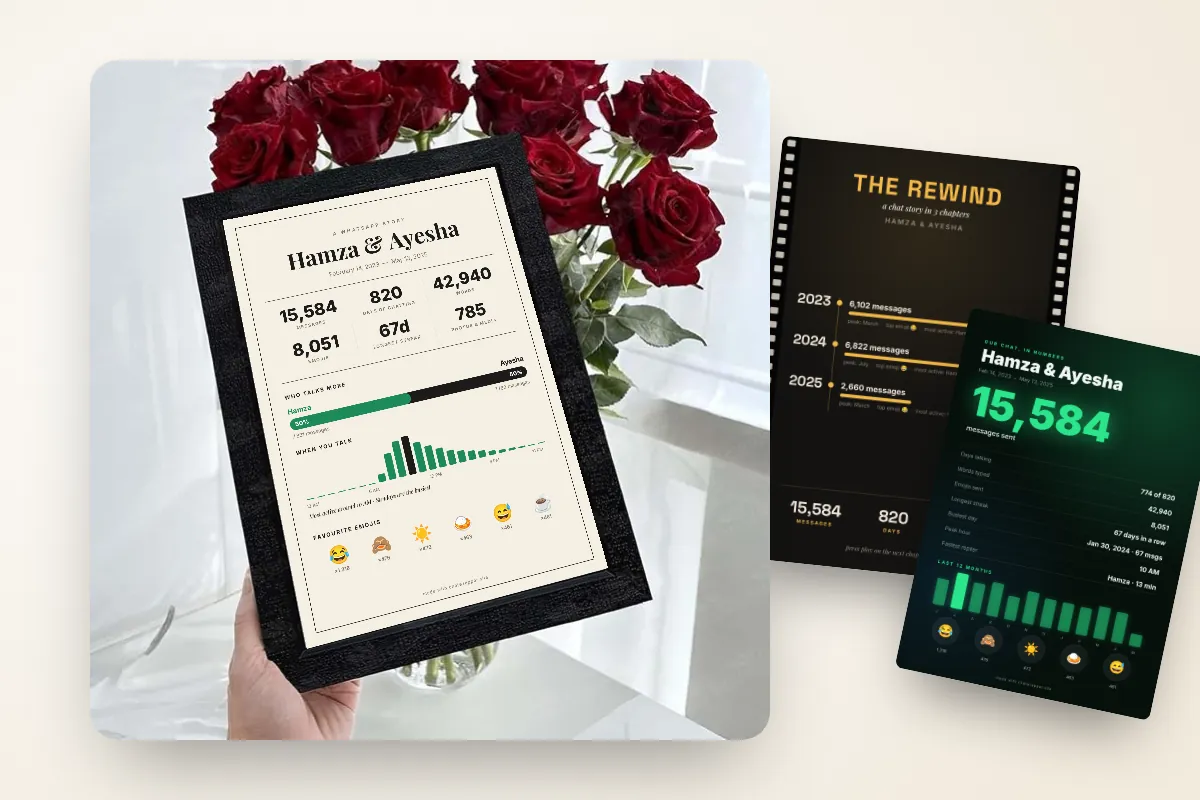
Method 4: Turn the chat's highlights into a printable PDF poster
If you're not trying to archive every line but want something to keep, frame or gift, a full transcript isn't the right shape. A 400-page PDF of "ok", "han" and "call me" is not something anyone rereads.
ChatWrapper takes the same WhatsApp export and turns it into a designed poster of the relationship's stats: total messages, days of chatting, longest streak, busiest day, peak hour, who texts more, your first message, top emojis and reply times. You can explore those numbers first with our WhatsApp chat analyzer, then pick one of 15 designs, from Classic Stats to Emerald Nikah and The Love Letter.
- Export the chat Without media, upload the .txt or .zip, choose a design and download. It takes about a minute.
- Download as a print-ready PDF or PNG at 2400×3394 px, which prints cleanly on A4 or A3.
- The chat is read inside your browser on your own device. It is never uploaded and your messages are never stored.
- Everyone gets 2 free posters; premium unlocks unlimited posters, all designs and no watermark.
It's a popular pick for anniversaries, nikah and shaadi gifts, and long-distance couples who want their years of texting on a wall instead of in a backup file.
Comparison: which way to export WhatsApp chat to PDF?
| Method | Keeps chat look? | Includes media? | Privacy | Cost |
|---|---|---|---|---|
| Google Docs / Word / Pages | No, plain transcript | No (added manually only) | Stays in your own account or device | Free |
| Print to PDF on phone | No, plain transcript | No | On device | Free |
| Screenshots to PDF | Yes, bubbles and ticks | Visible images only | On device | Free |
| ChatWrapper poster | Designed stats poster, not a transcript | No (optional couple photos on romantic designs) | Read in your browser, never uploaded | 2 free posters, premium for more |
Be careful with "WhatsApp to PDF" apps
Search any app store and you'll find plenty of tools promising a one-tap WhatsApp to PDF conversion. Some work well, but many upload your entire conversation to their own servers to do the conversion. That can mean years of private messages, phone numbers and shared addresses sitting on a stranger's computer.
- Read the privacy policy before uploading. Look for a clear statement that files are processed on your device or deleted immediately.
- Be wary of apps that ask for broad permissions, such as access to all your files or contacts, just to convert one text file.
- Remember the chat contains the other person's messages too. Get their okay before sharing it anywhere.
- When in doubt, stick to Google Docs, Word or your phone's print option. They are free and you already trust them.
Wrapping up
There is no PDF button inside WhatsApp, but getting there is simple. Export the chat, then pick the method that fits your purpose: Google Docs or Word for a full, searchable record, Print to PDF when you're on your phone, and screenshots for a short exchange where the look matters.
And if the chat is less of a record and more of a story, you can turn your WhatsApp chat into a poster and download it as a print-ready PDF in about a minute, with nothing leaving your phone.


